
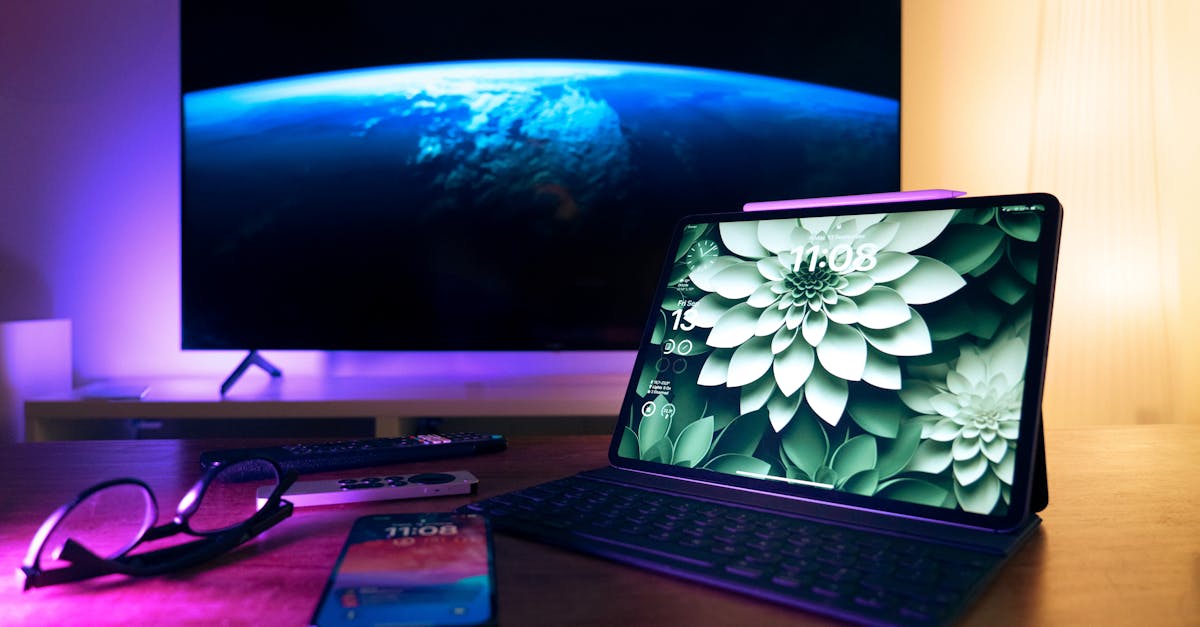
Imagine this: you’re lounging on the couch, scrolling through your favorite cat videos on your iPhone, and suddenly you think, “Why not share this masterpiece with the whole room?” That’s where screen casting comes in, turning your tiny screen into a big-screen extravaganza. Not only does it save your friends from squinting at your phone, but it also elevates your viewing experience to a whole new level.
Screen casting your iPhone to your TV isn’t just a techy trick; it’s a game-changer for movie nights, virtual hangouts, or even showing off your latest vacation pics. With a few simple steps, you’ll be the star of the show, effortlessly connecting your devices and impressing everyone. So let’s dive into the world of screen casting and discover how to make your iPhone the ultimate entertainment hub.
Table of Contents
ToggleOverview of Screen Casting
Screen casting allows users to share their iPhone displays with a TV, creating a larger viewing experience. Users enjoy this feature for activities like streaming movies, sharing photos, or playing games with family and friends. By mirroring the iPhone’s interface, screen casting enables seamless sharing of content, enhancing the entertainment experience.
Many modern TVs and streaming devices support AirPlay, Apple’s technology for screen casting. Users can stream content directly from their devices without needing additional cables or hardware. Various applications, such as YouTube and Netflix, integrate screen casting functionality, simplifying access to shared content.
Setting up screen casting typically requires Wi-Fi access for both the iPhone and TV. Once connected, users can effortlessly select the TV from their device’s control center. Initiating screen casting takes just a few taps, making it user-friendly for individuals of all ages. The experience transforms how users interact with their media, allowing for smooth transitions between different types of content.
Streaming quality largely depends on the Wi-Fi network strength. For the best experience, a stable and fast connection is essential. Users often notice improved resolution and decreased lag when using a reliable network.
Many users appreciate the versatility of screen casting for various occasions. Whether it’s displaying a presentation for work or sharing a family event, screen casting brings everyone together. This technology makes it easier to connect and engage with content in shared spaces, enhancing communication and social interaction.
Requirements for Screen Casting
Successful screen casting from an iPhone to a TV involves specific devices and software. Both elements play crucial roles in ensuring a seamless experience.
Compatible Devices
iPhones that support screen casting include models from iPhone 5 and later. Apple TVs featuring AirPlay 2 technology enable easy connections. Smart TVs from brands like Samsung, LG, and Sony also often have built-in AirPlay capabilities. Devices such as Amazon Fire TV and Roku may support screen casting with additional apps installed. Verify that the chosen TV or device has the necessary compatibility to enhance the casting experience.
Software and Apps
iOS must be updated to version 12 or later for optimal screen casting performance. Screen casting relies on the presence of reliable apps, with popular options including YouTube, Netflix, and Apple TV. These applications feature AirPlay integration, allowing for easy content sharing. Users can also explore third-party casting apps that enhance functionality. Frequent updates to these applications ensure that compatibility and performance remain high, making them essential for an effective screen casting setup.
Methods to Screen Cast iPhone to TV
Several methods exist for screen casting an iPhone to a TV. Two primary options include using AirPlay and third-party apps.
Using AirPlay
AirPlay provides a seamless way to screen cast from an iPhone to a compatible TV. First, ensure both devices connect to the same Wi-Fi network. Access the Control Center on the iPhone by swiping down from the top-right corner. Tap on “Screen Mirroring” and select the desired TV from the list. This integration enables instant streaming of videos, music, and photos directly from the iPhone. Apple TV and many smart TVs from brands like Samsung and LG support AirPlay 2. When successful, the TV displays the iPhone screen, enhancing the viewing experience.
Using Third-Party Apps
Third-party apps offer additional functionality for screen casting. Users can explore options like YouTube, Netflix, or streaming apps specifically designed for screen mirroring. Many of these applications allow users to cast content without needing a wired connection. Download the preferred app from the App Store, then open it while connected to the same Wi-Fi network as the TV. Look for the cast icon within the app interface, and select the target device. This method provides versatility, especially for devices without built-in AirPlay support.
Troubleshooting Common Issues
Screen casting an iPhone to a TV can sometimes pose issues. Lost connection frequently disrupts the experience, often due to network instability. Users should check that both the iPhone and TV maintain a solid Wi-Fi connection. A simple restart of both devices often resolves temporary glitches.
Sometimes the screen doesn’t mirror, indicating compatibility issues. Older TV models may lack the necessary updates for AirPlay. Verifying that the TV supports AirPlay 2 is crucial for seamless streaming. New users can also consult their TV’s user manual for detailed compatibility information.
Audio problems, such as out-of-sync sound, can occur. Adjusting audio settings on the TV may fix delays. Ensuring that the iPhone’s audio output is directed to the TV can improve synchronization.
Occasionally, users encounter buffering during streaming. Bandwidth limitations caused by multiple devices on the same network negatively impact streaming quality. Reducing the number of connected devices can enhance performance.
Screen flickering may also happen, especially with third-party apps. Ensuring that these apps and the iPhone’s iOS are updated helps minimize this issue. Installing the latest updates often boosts overall functionality.
For those experiencing difficulty locating the screen mirroring option, accessing the Control Center correctly is key. Users should swipe down from the upper-right corner of the screen to reveal this option. Confirming that AirPlay is selected can streamline the connection process.
Many common issues involve connectivity, compatibility, audio synchronization, and app functionality. Identifying these problems and applying the solutions can lead to a smoother screen casting experience.
Screen casting an iPhone to a TV opens up a world of entertainment possibilities. Whether it’s for sharing cherished memories or enjoying the latest shows with friends and family, the experience is significantly enhanced on a larger screen. With the right setup and compatible devices, users can enjoy seamless streaming and mirroring.
By leveraging AirPlay or third-party apps, anyone can easily connect their iPhone to a TV without the hassle of cables. Troubleshooting common issues ensures a smooth experience, allowing for uninterrupted enjoyment. Embracing screen casting not only enriches personal viewing experiences but also strengthens connections during shared moments.

